
Just like WordPress core, your plugins need to be kept up to date. Plugins add important functionality to your site — from SEO tools and contact forms to security features and backups. But because they are third-party code, they can become outdated, insecure, or incompatible if you don’t maintain them
Why it matters
- Security risks: Outdated plugins are one of the top causes of hacked WordPress sites.
- Performance: Updates often improve plugin speed and efficiency, which benefits your whole site.
- Compatibility: Plugins are designed to work with the latest WordPress core. If your plugins are old, they may break after a core update.
- SEO impact: A broken plugin can lead to slow load times, broken sitemaps, or errors that prevent search engines from crawling your site.
How to check in WordPress
- Log in to your WordPress dashboard.
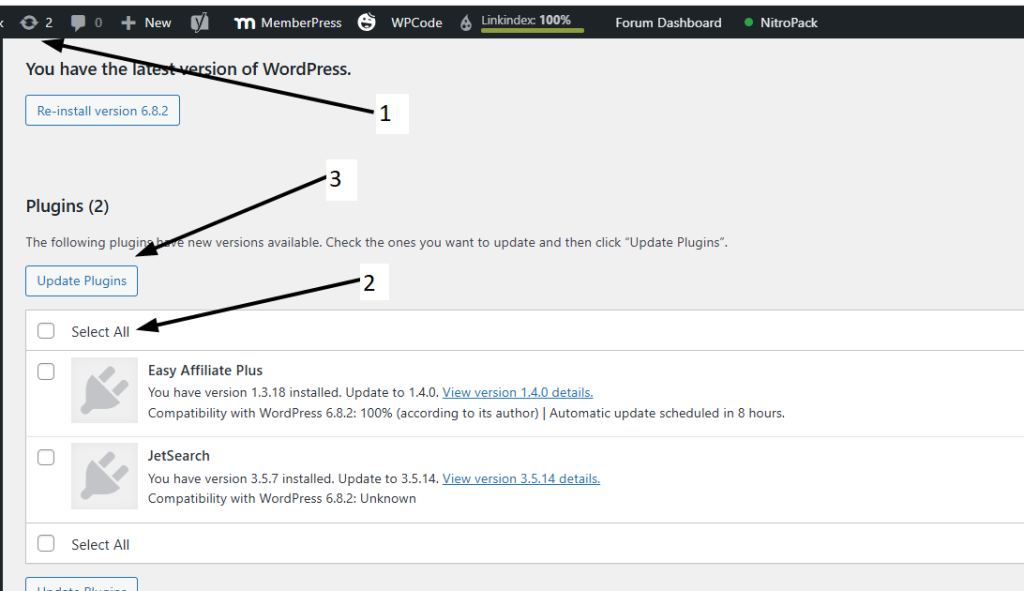
- Go to Plugins → Installed Plugins.
- Any plugin needing an update will display a notification in orange or red, with a link to update.
- You can also see the plugin’s version number and compare it to the latest release in the WordPress repository.
How to update safely
- Backup first – as with core updates, always take a backup before updating.
- Update plugins one by one – this makes it easier to spot if one causes a problem.
- Test your site – after each update, check key pages and forms.
- Delete unused plugins – deactivate and remove any plugins you no longer use. They can still pose a security risk even if inactive.
Note: Why you may want your web developer to handle plugin updates
Just like with WordPress core updates, plugin updates can sometimes cause conflicts or break parts of your site — especially if you’re running a lot of plugins or using a customised theme.
Having your web developer manage plugin updates gives you peace of mind because they can:
- Take proper backups before making any changes and quickly restore them if an update causes issues.
- Test updates on a staging site to make sure everything works as expected before pushing changes live.
- Identify conflicts between plugins or between a plugin and your theme, and resolve them on the spot.
- Troubleshoot errors immediately if your site breaks after an update.
For business-critical websites, this is often the safest route. It means updates are applied promptly while reducing the risk of downtime or broken functionality that could hurt your SEO or user experience.
Apply this to your own website
- Log in now and check your list of plugins.
- Record in your SEO Training Log:
- Which plugins needed updating.
- Whether you updated them yourself or had your developer do it.
- Any plugins you removed to reduce bloat and risk.

Need Help?
Go to our forum on this topic where other members or Ashley will help you.
Lesson outcomes
- Identify which plugins need updating
- Understand why plugin updates matter for SEO and security
- Record update activity in your SEO Training Log
Resources
- N/A