
A malware check is a simple but essential step in keeping your website safe, trustworthy, and visible in Google search results. Malware is malicious code or software that can infect your site without your knowledge — often through outdated plugins, weak passwords, or compromised hosting.
Google and other search engines monitor websites for malware, and if they detect a problem, your site could be flagged as unsafe or even removed from search results.
Why this matters
- Protect your visitors – Malware can harm users’ devices or steal their information, damaging your reputation.
- Protect your rankings – Google may show a “This site may be hacked” or “Deceptive site ahead” warning, causing traffic and trust to drop immediately.
- Protect your business – An infected site can be blacklisted, blocked by browsers, and ignored by AI tools that prioritise safe sources.
How to check if your site is safe
We’ll use Google’s own free malware detection tool:
👉 Google Transparency Report – Safe Browsing
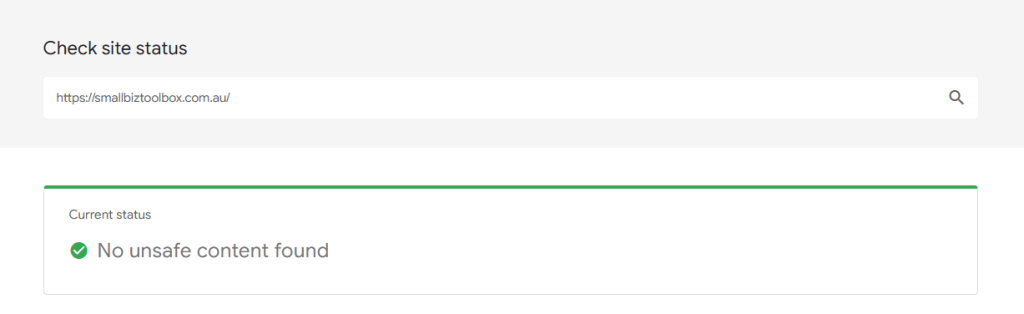
You want this result:
Step-by-step instructions
- Go to https://transparencyreport.google.com/safe-browsing/search
- In the search bar, type your website address (e.g.,
https://yourbusiness.com). - Press Enter.
- Review the result:
- If you see “No unsafe content found”, your site is clean.
- If it reports unsafe content or malware, your site has been compromised.
- Record your results in your SEO Training Log.
What to do if your site is flagged
If Google reports that your website contains malware or unsafe content:
- Contact your web developer or hosting provider immediately. They can scan the site, remove infected files, and patch vulnerabilities.
- Change all passwords (WordPress, hosting, FTP, email).
- Update WordPress core, themes, and plugins to close security gaps.
- Re-run the malware check after cleaning the site.
- Request a review in Google Search Console once you’ve confirmed it’s safe.
Apply this to your own website
Even if your site is clean today, it’s a good habit to run this check every few months or after any major site changes. For WordPress users, pairing this with a security plugin (like Wordfence or Sucuri) adds an extra layer of protection.
Step-by-step checklist

Need Help?
Go to our forum on this topic where other members or Ashley will help you.
Lesson outcomes
- Check your website for malware using Google’s free tool
- Understand how malware impacts SEO, security, and user trust
- Record your malware status and actions in your SEO Training Log