
If you’re running WordPress, one of the most important (and often overlooked) SEO and security tasks is making sure the WordPress core software is up to date.
WordPress regularly releases updates to improve performance, fix bugs, patch security holes, and sometimes add new features. Keeping your site updated is not only good practice for security — it also impacts SEO.
Why it matters
- Security: Outdated WordPress versions are one of the most common ways websites get hacked. A hacked site can quickly disappear from Google results.
- Performance: Updates often improve speed and compatibility, which helps with user experience and Core Web Vitals (a Google ranking factor).
- SEO signals: A fast, secure, and technically healthy site is rewarded in search. An outdated one may face indexing issues.
- Compatibility: Plugins and themes rely on the core being current. Running old versions can break features or prevent new ones from working correctly.
How to check in WordPress
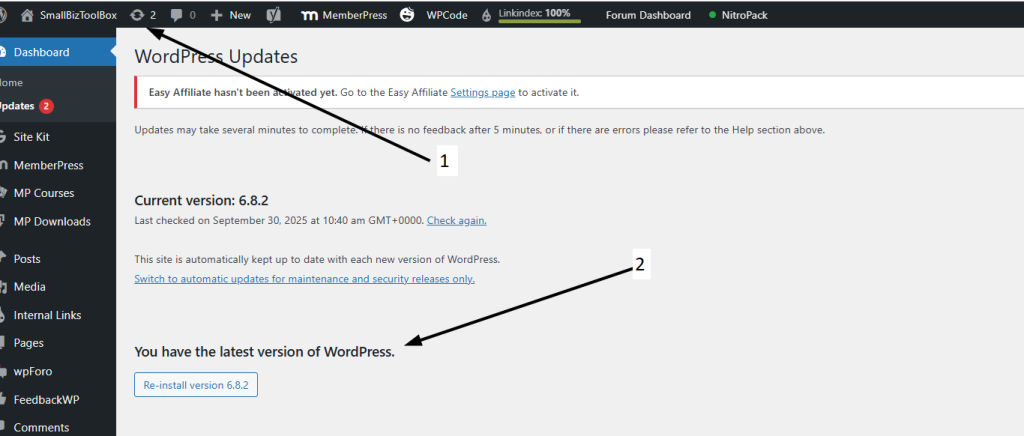
- Log in to your WordPress dashboard (
yourdomain.com/wp-admin). - Look at the top of the screen or the Dashboard → Updates menu.
- If your site is up to date, you’ll see a message confirming it.
- If not, you’ll see a notice telling you an update is available.
- The current WordPress version will also be listed at the bottom-right corner of your dashboard. Compare it with the latest version on wordpress.org
How to update safely
- Backup your site – always take a full backup before updating (files + database). Many hosts offer one-click backups.
- Update WordPress core – click Update Now in the Updates screen.
- Update themes and plugins – after the core, make sure themes and plugins are also up to date to avoid conflicts.
- Test your site – click around key pages (homepage, contact, product/service pages) to make sure everything works.
Note: Why you may want your web developer to handle updates
While WordPress updates are usually straightforward, they can sometimes create conflicts with themes, plugins, or custom code on your site. If something goes wrong, your site could break or go offline until it’s fixed.
That’s why many business owners prefer to have their web developer or hosting provider handle core updates. A developer can:
- Take full backups before updating and quickly restore them if anything goes wrong.
- Test updates in a safe environment (a staging site) before applying them live.
- Check plugin and theme compatibility so you don’t end up with errors.
- Troubleshoot issues immediately if something breaks after an update.
For peace of mind, especially if your website is critical for leads and sales, having your developer manage updates ensures your site stays secure, functional, and professionally maintained.
Apply this to your own website
- Log in to your WordPress site now.
- Note the version number of your WordPress installation.
- Record it in your SEO Training Log, along with whether an update was needed.
- If you’re not confident updating yourself, speak with your host or web developer — but make sure it gets done regularly.

Need Help?
Go to our forum on this topic where other members or Ashley will help you.
Lesson outcomes
- Check if your WordPress core is up to date
- Understand why updates matter for SEO and security
- Record update activity in your SEO Training Log
Resources
- N/A